


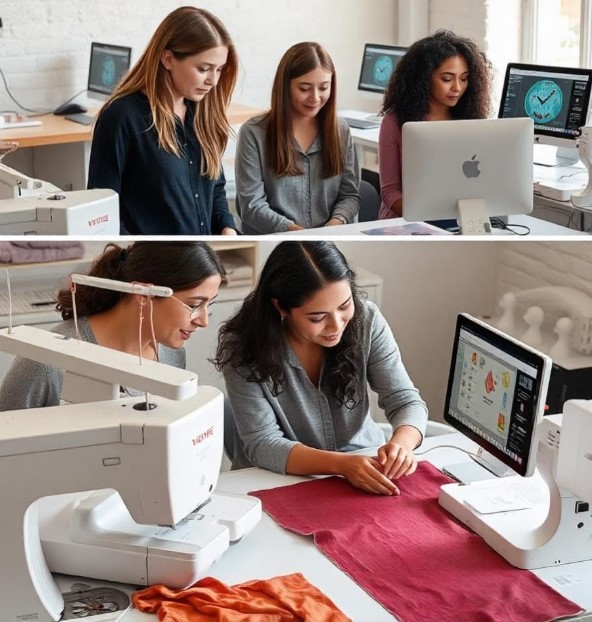
How to Turn PDF Designs into Embroidery-Ready Files
Embroidery is fun and creative. But it can feel hard when you work with files. Many people have designs saved as PDF files. They want to stitch them. But the machine does not read PDF files. This is where many beginners get stuck.I remember when I first tried to use a PDF design. I thought I could just load it into my machine. It did not work. I had to learn the full process step by step. If you are trying to Convert PDF to DST Format, you need to understand that it is not a one-click task. It takes a few steps, but it is easy once you learn.In this guide, I will explain everything in a simple way. You will learn how to turn a PDF into a file your embroidery machine can use.
What Is a PDF Design?
A PDF is a document file.
It can hold:
- Images
- Text
- Vector art
But it does not hold stitch data.
Your embroidery machine needs stitch data. That is the key difference.
Why You Cannot Stitch a PDF Directly
This is a common mistake.
A PDF looks like a design. But it is not ready for stitching.
Here’s Why:
- No stitch path
- No needle info
- No thread color order
- No machine commands
Your machine needs all of this to work.
So first, you must convert the design into stitch data.
What Is an Embroidery File?
An embroidery file is a special file.
It tells your machine:
- Where to stitch
- How to move
- When to stop
- Which color to use
Examples of embroidery formats:
- DST
- PES
- JEF
Each machine uses its own format.
The Full Process Explained
Turning a PDF into an embroidery file takes a few steps.
Let’s break it down.
Step 1: Extract the Design from the PDF
First, you need the image.
How to Do It
- Open the PDF
- Save or export the image
- Use PNG or JPG format
If the PDF is vector-based, you can export it as SVG.
This gives you a clean design.
Step 2: Clean the Image
Now you prepare the design.
What to Fix
- Remove extra text
- Clean the background
- Sharpen lines
- Make edges clear
A clean image gives better stitch results.
Step 3: Import Into Digitizing Software
Now comes the main step.
Digitizing software turns images into stitches.
What You Do
- Open your software
- Import the image
- Resize the design
Make sure the size fits your hoop.
What Is Digitizing?
Digitizing is the heart of embroidery.
It is not just a click.
It is a skill.
What Happens in Digitizing
- You trace the design
- You set stitch types
- You choose stitch direction
- You set density
This step controls the final look.
Types of Stitches You Will Use
When digitizing, you will use different stitches.
Running Stitch
- Simple line
- Good for outlines
Satin Stitch
- Smooth and shiny
- Good for text and borders
Fill Stitch
- Covers large areas
- Adds texture
Choosing the right stitch is very important.
Step 4: Assign Colors
Now you choose thread colors.
Your machine will follow this order.
Tips
- Keep colors simple
- Match real thread shades
- Avoid too many changes
Too many colors slow down stitching.
Step 5: Set Stitch Order
This step is very important.
You must choose the order of stitching.
Why It Matters
- Prevents overlap
- Keeps design neat
- Saves time
Always stitch from center to outer areas when possible.
Step 6: Export to Embroidery Format
Now your design is ready.
Export it into the right format.
Common Choices
- DST for industrial machines
- PES for Brother machines
- JEF for Janome machines
Choose the format your machine supports.
My First Real Project
Let me share a quick story.
I once had a logo in PDF form. A client wanted it stitched on shirts.
I thought it would take a few minutes.
But I was wrong.
First, I had to extract the image. Then I cleaned it. After that, I digitized it. I tested it on fabric.
The first result was not good.
The stitches were too dense. The fabric pulled.
So I fixed the density. I tested again.
This time, it looked clean.
That project taught me patience.
Tools You Can Use
There are many tools for this process.
Free Tools
- Basic image editors
- Simple converters
Good for learning.
Paid Software
- Advanced digitizing tools
- Better control
- More features
Best for serious work.
Common Mistakes to Avoid
Let’s save you time.
Skipping Digitizing
You cannot skip this step.
No software can fully auto-convert perfectly.
Using Low-Quality Images
Bad images lead to bad stitches.
Always use clear designs.
Wrong File Format
Your machine will not read the wrong format.
Always check first.
Too Many Details
Small details do not stitch well.
Keep designs simple.
Tips for Better Results
Here are some tips from my experience.
Keep It Simple
Simple designs stitch better.
Test Before Final Work
Always test on scrap fabric.
Adjust Density
Too many stitches can damage fabric.
Use Good Thread
Cheap thread breaks easily.
Understanding Stitch Density
Density means how close stitches are.
High Density
- Strong look
- Can damage fabric
Low Density
- Light look
- May look empty
You need balance.
Fabric Matters Too
Different fabrics behave differently.
Soft Fabric
- Needs light stitches
Thick Fabric
- Can handle dense stitches
Always match design with fabric.
Why Experience Matters
You can watch videos. You can read guides.
But real learning comes from doing.
Each project teaches you something new.
I still learn with every design.
Building Trust With Your Work
If you work for clients, quality matters.
Good embroidery means:
- Clean finish
- Strong stitching
- Happy customers
Bad work can harm your name.
So take your time. Do it right.
Quick Workflow Summary
Here is a simple flow:
- Extract image from PDF
- Clean the design
- Import into software
- Digitize the design
- Set stitches and colors
- Export to correct format
- Test stitch
Follow this every time.
Final Thoughts
Turning a PDF into an embroidery file is not hard. It just takes steps.
Do not rush the process.
Focus on:
- Clean design
- Good digitizing
- Proper testing
Start small. Learn slowly.
With time, you will get better. And soon, you will turn any design into a clean embroidery file with confidence.
¡Suscríbete!